Why Performance Management
Why Performance Management Matters Videos
User Video: Why Regular Feedback Matters?
User Video: Agile Goals Drive Success
User Video: Mastering Different Types of Conversations
User Video: The Power of Regular Conversations
User Video: Seeking Feedback is your Secret Weapon
User Video: Unlock the Benefits of CPM
Why Request Feedback?
Why Continuous Performance Management?
Why have Frequent Conversations?
Why in the moment Feedback?
Why Performance Management Matters Videos: Full List
Why have Different Types of Conversations?
Why create Agile Performance Goals?
Employees
How-to Videos
Objectives
User Video: Working with Objectives Pt. 1 - Creating New Objectives
User Video: Working with Objectives Pt. 2 - Managing your Objectives
User Video: Making use of the Objective Library
User Video: Collaborating with Colleagues on Objectives
What are Objectives
Setting Personal Development Objectives
What are Personal Development Objectives
Setting Performance Objectives
Adding Collaborators to Objectives (Optional Feature)
Managing Your Objectives
Actions
Conversations
User Video: Conversations Feature
Microsoft Outlook Integration - Employee Configuration
Preparing for a Check-in
Making the most of Check Ins
Feedback
User Video: Feedback Function
User Video: Feedback Circles (Old UI)
User Video: Using Draft with AI for Feedback
Giving Effective Feedback
How to Give and Receive Feedback
Feedback Circles (Optional Feature)
Feedback - Draft with AI FAQ's
Feedback - Draft your Feedback with AI
Give Feedback from Microsoft Teams
Feedback - Giving Feedback using Voice Messaging
Talent Snapshots
Frequently Asked Questions (FAQs)
Managers
Your Team
User Video: Your Team (for Managers)
Workflows for Multiple Managers
My Team - Private Notes
My Team - Performance Summary
My Team - Key features and functions
Manager: How to answer a Talent Snapshot for your Team
System Administrators
Admin How-to Videos
Admin Videos: Full List
Admin Video: How to Edit a User and change their Manager (Old UI)
Admin Video: Working with Admin Roles and Org Unit Configuration (Old UI)
Admin Video: How to configure Conversations (Old UI)
Admin Video: Making use of the Objective Library (Old UI)
Admin Video: How to update default labels and text (Old UI)
Admin Video: How to create and use Org Goals with Performance Objectives (Old UI)
People Management
People Management
Multiple Managers Configuration
Creating Admin Roles / Assigning Access
How to Set Up Delegate Access
Organisational Goals
Objective Settings
Performance Objective Options
Personal Development Objective Options
Configuring the Objectives Library
Conversation Settings
Default Conversation Prompts
Enabling Multiple Conversation Types
Conversations - Reminders and Discussion Prompts
Supplemental Discussion Prompts
Talent Snapshots
How to create and edit a new Template for Talent snapshots
Creating Effective Talent Snapshot Questions
How to add new round in Talent snapshot
How to add or remove participant in Talent snapshots
Define what talent means in your organisation
Feedback Settings
Building a Feedback Culture
Feedback Settings
Draft with AI for Admins
Feedback Circles for Admins (Additional Module)
Feedback Circles Round Templates
Navigation Options
Notifications
Languages and System Terminology Settings
System Terminology
Language and System Terminology
Multiple Languages and Terminology
Accessibility Statement for Performance & Talent - a digital product by OneAdvanced Ltd - July 2026
Report Visibility Options
Admin Reporting Overview
Integration Settings
OneAdvanced Identity
OneAdvanced Identity
Federating OneAdvanced Identity to Azure Active Directory
Performance & Talent App Initiated Login - SSO
Microsoft Teams Integration - Admin Configuration
Microsoft One Drive Integration - Admin Configuration
Microsoft Outlook Integration - Admin Configuration
Integrations (HRIS Data Feed / Single Sign on)
Performance & Talent Implementation
Additional Functionality
User Experience / User Interface Release
Release Notes
Performance & Talent Release Notes 11/03/2026
Performance & Talent Release Notes 25/03/2026
Performance & Talent Release Notes 14/04/2026
Performance & Talent Release Notes 21/04/2026 (Patch)
Performance & Talent Release Notes 28/04/2026
Performance & Talent Release Notes 12/05/2026
Performance & Talent Release Notes 26/05/2026
Performance & Talent Release Notes 23/06/2026
Performance & Talent Release Notes 09/06/2026
Performance & Talent Release Notes 07/07/2026
Performance & Talent Release Notes 23/07/2026
Performance & Talent Release Notes 06/08/2026 - IQ Rebranding
Performance & Talent Release Notes 20/08/2026
Table of contents
- Single Sign On Option 1 - I want my users to login via our existing sub-domain
- Single Sign On Option 2 - I want users to have a seamless SSO login experience without entering an email address when logging in
- Single Sign On Option 3 - I have multiple organisations and want my users to confirm the correct organisation at login, via the new domain
- All categories
- System Administrators
- Integration Settings
- OneAdvanced Identity
- Performance & Talent App Initiated Login - SSO
Performance & Talent App Initiated Login - SSO

- Single Sign On Option 1 - I want my users to login via our existing sub-domain
- Single Sign On Option 2 - I want users to have a seamless SSO login experience without entering an email address when logging in
- Single Sign On Option 3 - I have multiple organisations and want my users to confirm the correct organisation at login, via the new domain
Following the New User Experience release, all Performance & Talent customers now use OneAdvanced Identity as the authentication service.
The configuration applied to the single sign-on login URL in your Federation provider settings will influence the user experience upon logging in via any apps or mapped URLs.
This article documents the three options Single Sign in Options to Customise your login experience through your Federation app and use of custom sub-domains.
Single Sign On Option 1 - I want my users to login via our existing sub-domain
Configuration requirements
Leave the Single Sign on URL configuration in your Federation provider settings configured to your subdomain URL.
Behaviour
- After 2nd of March 2026, users going to your subdomain (i.e., https://MyCompany.clearreview.com) will be automatically redirected to https://apps.oneadvanced.com/
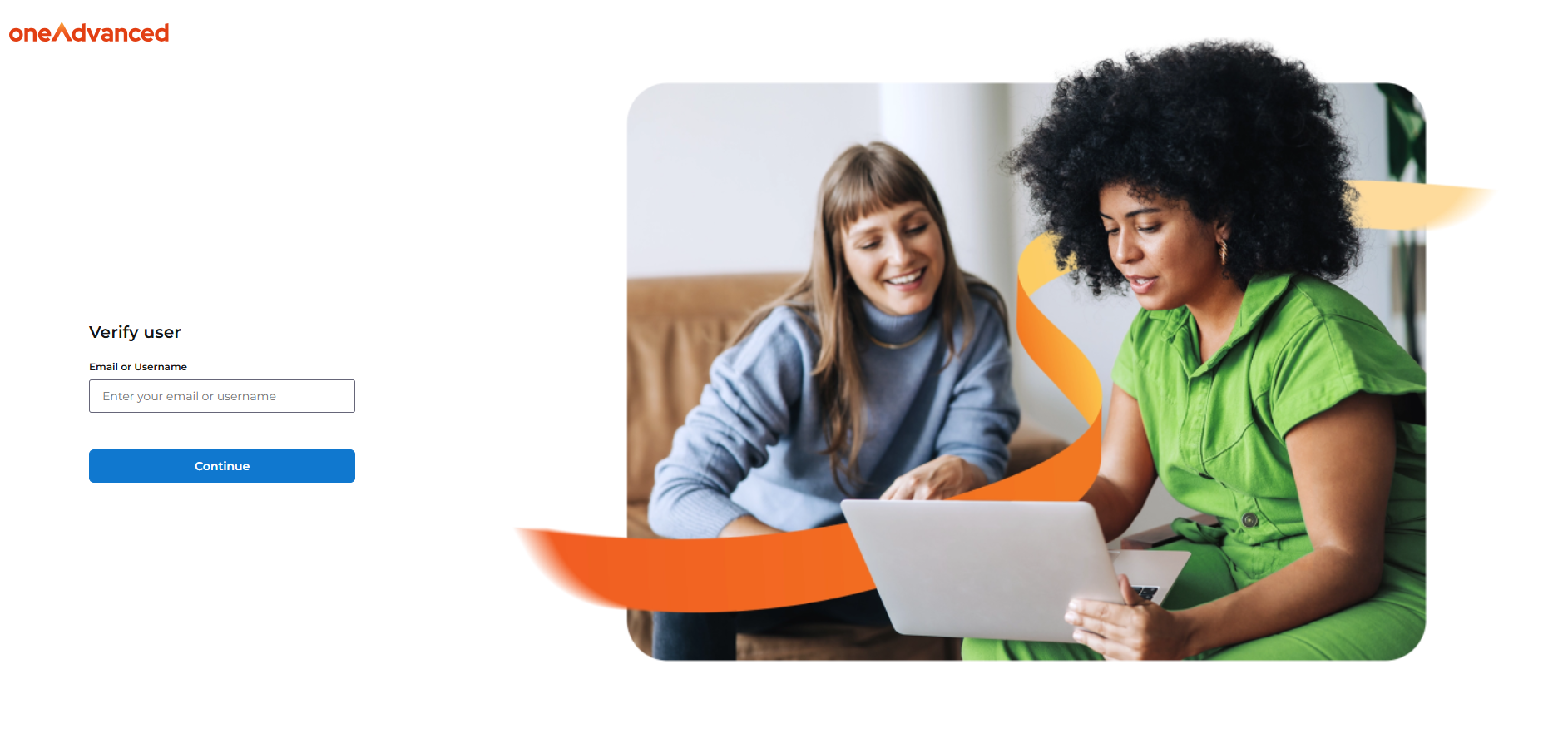
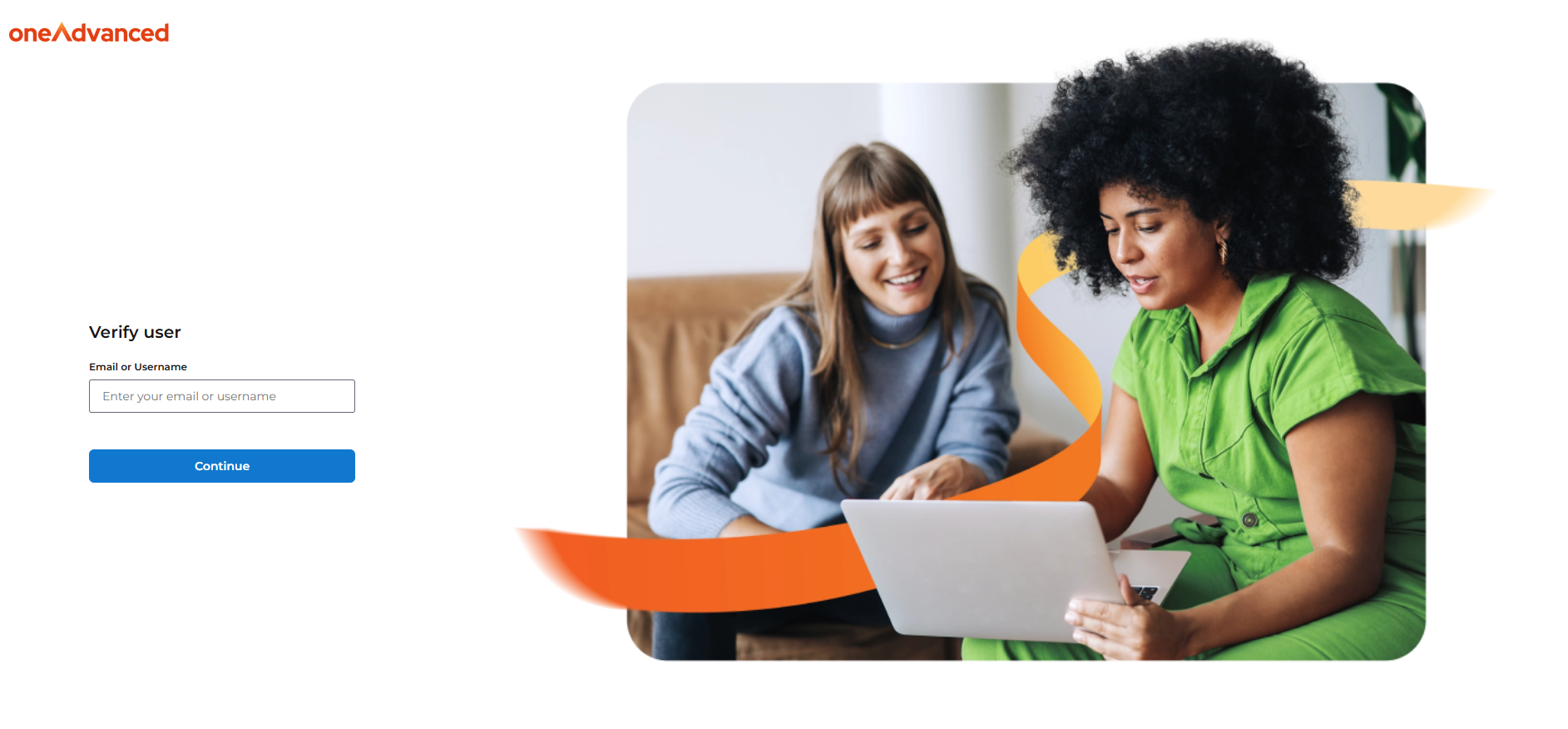
- Users will see the following screen, where they will be prompted to provide their email address.
- If you have SSO configured they will be redirected to your provider (E.G Entra / Okta / Google ) after they have entered their email address.
Single Sign On Option 2 - I want users to have a seamless SSO login experience without entering an email address when logging in
Configuration requirements
- Update the Single Sign On URL configuration in your Federation provider settings to map to the following URL:
https://auth.identity.oneadvanced.com/auth/discover?organizationHint=OrgnisationReference&redirectUri=https://apps.oneadvanced.com
- Update any bookmarks and links on your intranet that point to your old sub-domain, with the new mapping.
Behaviour
- User should go directly to the Single Sign On URL they have mapped, which will allow us to identify which organisation they are accessing the system from.
- This will mean users are immediately directed to your organisations Federated SSO Login page without the initial email entry prompt.
- If the user has already authenticated with your provider they will launch straight into Performance & Talent.
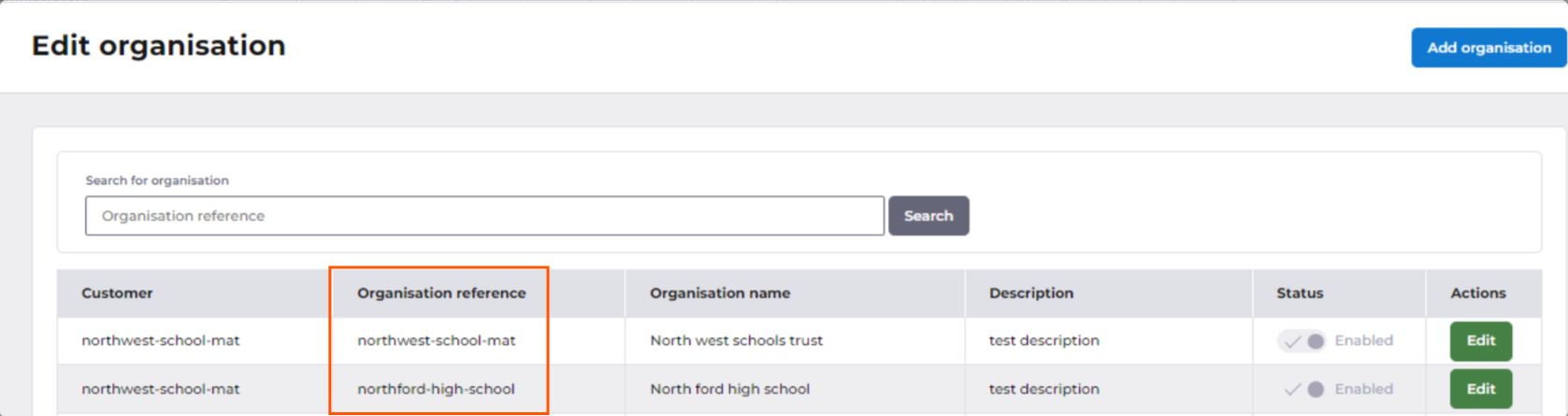
How do you retrieve your organisation reference?
- You can find your OneAdvanced organisation reference by going to Organisations in the Identity portal.
Use this link, or find it under Apps on the left menu. - You will be shown a list of the Organisations that you have access to.
- Select the Organisation reference for the Organisation that you want to use in your Identity set up.
What field do I need update in my Single Sign On provider?
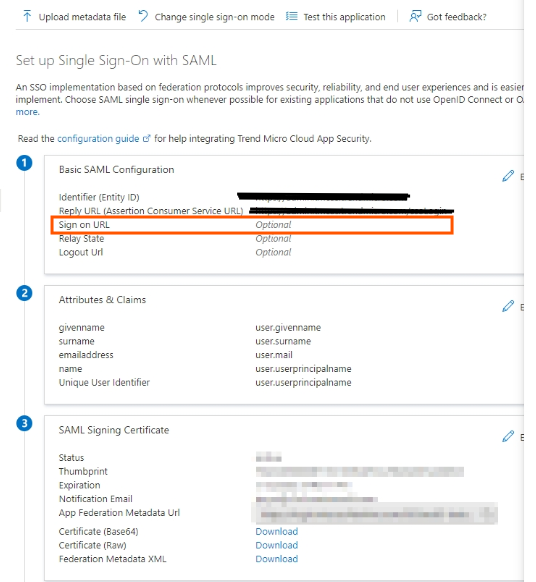
Azure
The Single Sign on Login URL Field looks like the following in Azure
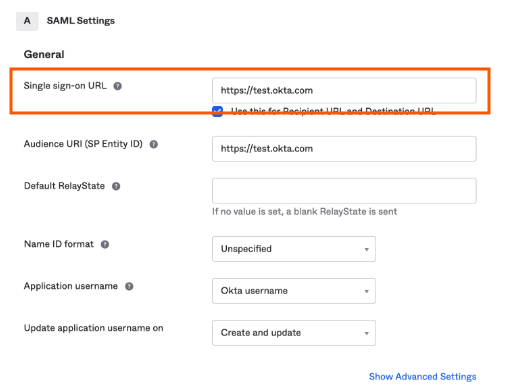
Okta
The Single Sign on Login URL Field looks like the following in Okta
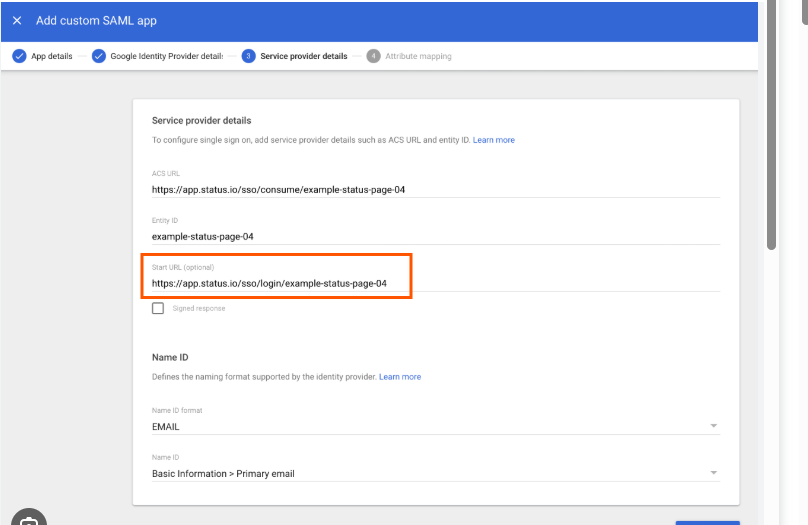
The Single Sign on Login URL Field looks like the following in Google
Single Sign On Option 3 - I have multiple organisations and want my users to confirm the correct organisation at login, via the new domain
Configuration requirements
- Update the Single Sign on URL configuration in your Federation provider settings to https://apps.oneadvanced.com
- Update your bookmarks and intranet links to https://apps.oneadvanced.com
Behaviour
- Users will not go to your subdomain (i.e., https://MyCompany.clearreview.com) anymore.
- User should go directly to https://apps.oneadvanced.com/
- Users will be prompted for their email address at the OneAdvanced login screen.
- This will allow us to identify their login path.
- Users will then be redirected to your SSO provider, for example: Entra / Okta / Google.
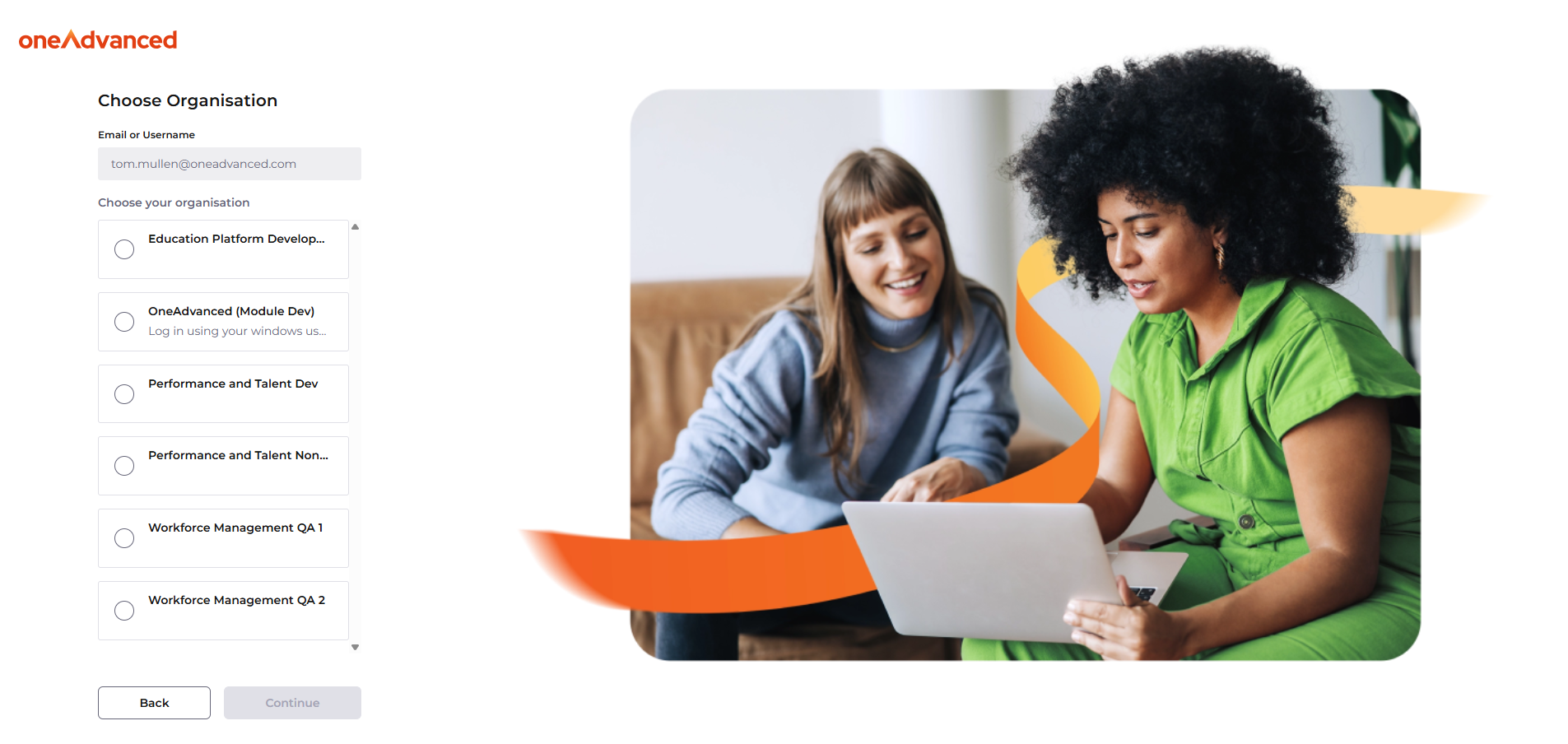
- If you have more than one organisation, users will then specify the appropriate organisation.