Why Performance Management
Why Performance Management Matters Videos
User Video: Why Regular Feedback Matters?
User Video: Agile Goals Drive Success
User Video: Mastering Different Types of Conversations
User Video: The Power of Regular Conversations
User Video: Seeking Feedback is your Secret Weapon
User Video: Unlock the Benefits of CPM
Why Request Feedback?
Why Continuous Performance Management?
Why have Frequent Conversations?
Why in the moment Feedback?
Why Performance Management Matters Videos: Full List
Why have Different Types of Conversations?
Why create Agile Performance Goals?
Employees
How-to Videos
Objectives
User Video: Working with Objectives Pt. 1 - Creating New Objectives
User Video: Working with Objectives Pt. 2 - Managing your Objectives
User Video: Making use of the Objective Library
User Video: Collaborating with Colleagues on Objectives
What are Objectives
Setting Personal Development Objectives
What are Personal Development Objectives
Setting Performance Objectives
Adding Collaborators to Objectives (Optional Feature)
Managing Your Objectives
Actions
Conversations
User Video: Conversations Feature
Microsoft Outlook Integration - Employee Configuration
Preparing for a Check-in
Making the most of Check Ins
Feedback
User Video: Feedback Function
User Video: Feedback Circles (Old UI)
User Video: Using Draft with AI for Feedback
Giving Effective Feedback
How to Give and Receive Feedback
Feedback Circles (Optional Feature)
Feedback - Draft with AI FAQ's
Feedback - Draft your Feedback with AI
Give Feedback from Microsoft Teams
Feedback - Giving Feedback using Voice Messaging
Talent Snapshots
Frequently Asked Questions (FAQs)
Managers
Your Team
User Video: Your Team (for Managers)
Workflows for Multiple Managers
My Team - Private Notes
My Team - Performance Summary
My Team - Key features and functions
Manager: How to answer a Talent Snapshot for your Team
System Administrators
Admin How-to Videos
Admin Videos: Full List
Admin Video: How to Edit a User and change their Manager (Old UI)
Admin Video: Working with Admin Roles and Org Unit Configuration (Old UI)
Admin Video: How to configure Conversations (Old UI)
Admin Video: Making use of the Objective Library (Old UI)
Admin Video: How to update default labels and text (Old UI)
Admin Video: How to create and use Org Goals with Performance Objectives (Old UI)
People Management
People Management
Multiple Managers Configuration
Creating Admin Roles / Assigning Access
How to Set Up Delegate Access
Organisational Goals
Objective Settings
Performance Objective Options
Personal Development Objective Options
Configuring the Objectives Library
Conversation Settings
Default Conversation Prompts
Enabling Multiple Conversation Types
Conversations - Reminders and Discussion Prompts
Supplemental Discussion Prompts
Talent Snapshots
How to create and edit a new Template for Talent snapshots
Creating Effective Talent Snapshot Questions
How to add new round in Talent snapshot
How to add or remove participant in Talent snapshots
Define what talent means in your organisation
Feedback Settings
Building a Feedback Culture
Feedback Settings
Draft with AI for Admins
Feedback Circles for Admins (Additional Module)
Feedback Circles Round Templates
Navigation Options
Notifications
Languages and System Terminology Settings
System Terminology
Language and System Terminology
Multiple Languages and Terminology
Accessibility Statement for Performance & Talent - a digital product by OneAdvanced Ltd - July 2026
Report Visibility Options
Admin Reporting Overview
Integration Settings
OneAdvanced Identity
OneAdvanced Identity
Federating OneAdvanced Identity to Azure Active Directory
Performance & Talent App Initiated Login - SSO
Microsoft Teams Integration - Admin Configuration
Microsoft One Drive Integration - Admin Configuration
Microsoft Outlook Integration - Admin Configuration
Integrations (HRIS Data Feed / Single Sign on)
Performance & Talent Implementation
Additional Functionality
User Experience / User Interface Release
Release Notes
Performance & Talent Release Notes 11/03/2026
Performance & Talent Release Notes 25/03/2026
Performance & Talent Release Notes 14/04/2026
Performance & Talent Release Notes 21/04/2026 (Patch)
Performance & Talent Release Notes 28/04/2026
Performance & Talent Release Notes 12/05/2026
Performance & Talent Release Notes 26/05/2026
Performance & Talent Release Notes 23/06/2026
Performance & Talent Release Notes 09/06/2026
Performance & Talent Release Notes 07/07/2026
Performance & Talent Release Notes 23/07/2026
Performance & Talent Release Notes 06/08/2026 - IQ Rebranding
Performance & Talent Release Notes 20/08/2026
- All categories
- Employees
- Objectives
- Adding Collaborators to Objectives (Optional Feature)
Adding Collaborators to Objectives (Optional Feature)
Adding Collaborators to Objectives
Collaborative objectives can help to enable the transparency and sharing of objectives between colleagues while also nurturing cross-departmental collaboration. This is an optional feature that must be enabled by your HR team. If enabled:
- Employees and managers can add their colleagues, within their team and across departments, to their Performance Objectives as Collaborators.
- These collaborators have full visibility on the objective details and statuses, as well as being able to add actions and comments.
- Collaborators access Collaborative Objectives on a new tab on the Objectives page.
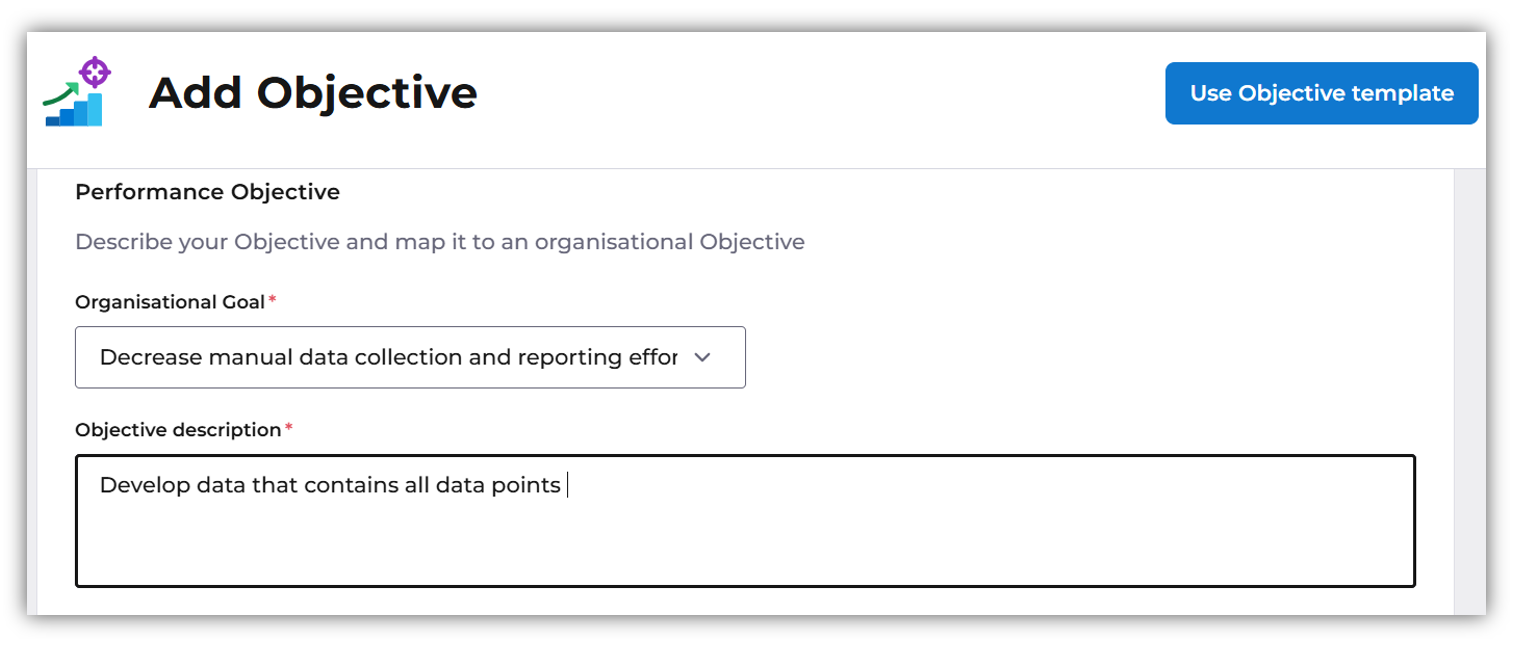

How it works
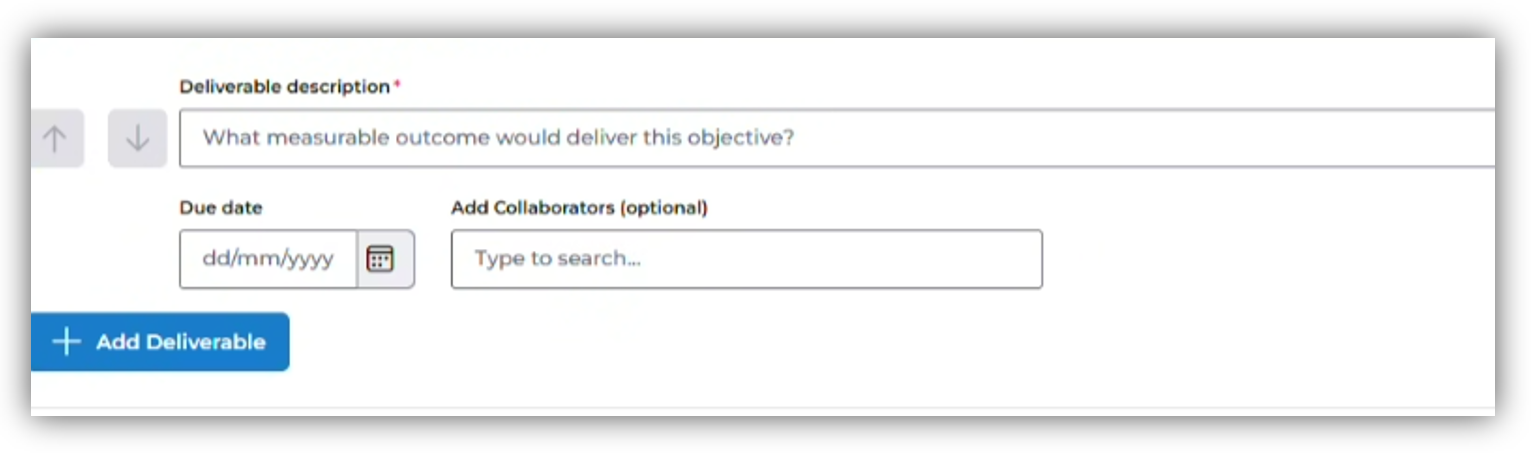
- Once enabled, employees will see a new Add Collaborator button when adding or editing their Performance Objectives. Clicking on this button enables them to search for and add collaborators to an individual deliverable.
Notifications and permissions
- Collaborators are alerted by email that they have been added as a collaborator to an objective, with a link to that objective.
- Being a collaborator enables you to comment on the objective or assign yourself and action from this objective. The objective owner can assign an action to any collaborator.
- Collaborators can remove themselves as collaborators at any time.
- If employees have not been added as a collaborator on any objective, then they won't see a Collaborative Objectives tab on their Objectives page.
- Since managers can edit their team member's objectives, managers can also add and remove collaborators on their team member's objectives.