Give Feedback from Microsoft Teams
How can I give feedback from MS Teams?
Give feedback directly in Microsoft Teams via our Teams app with real time synchronisation into Performance & Talent.
Install the Clear Review MS Teams app
The Clear Review teams app can be installed from the App store in Microsoft teams. Follow the below steps to find out how to install it.
- In MS Teams, go to the left-hand navigation bar and click on Apps. This will take you to the MS Teams app store
- Search for Clear Review which should return the app in the results
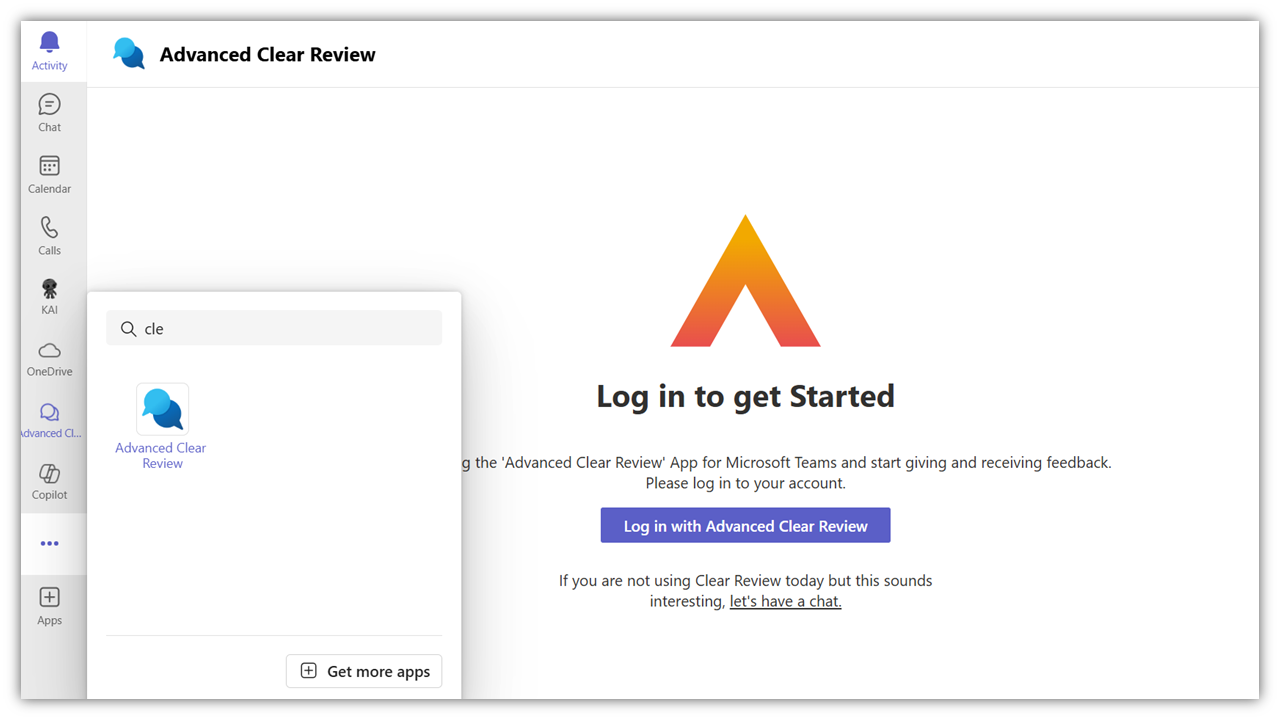
- Select the app and select Add
- You should now see the app on your left-hand navigation bar.
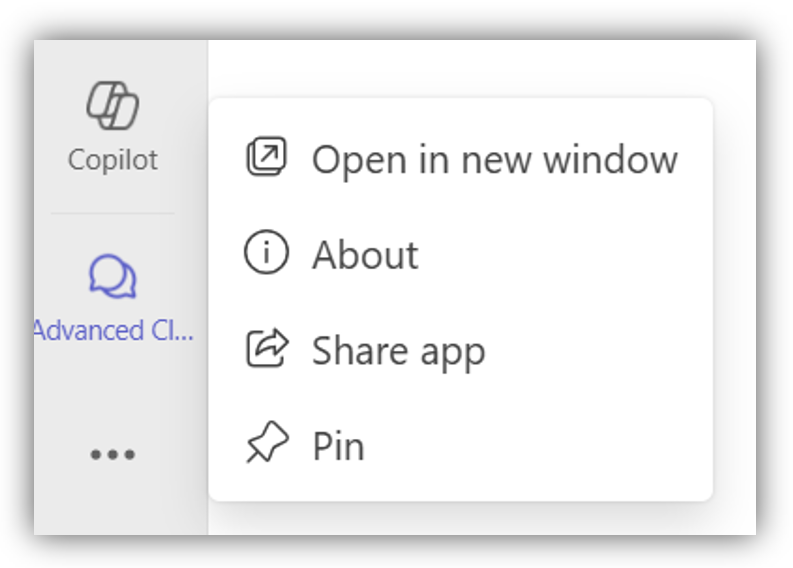
- You may wish to pin the app so that you can easily navigate to it from your navigation bar. To do so right-hand click the app and select Pin
Login to Performance & Talent via the MS Teams app
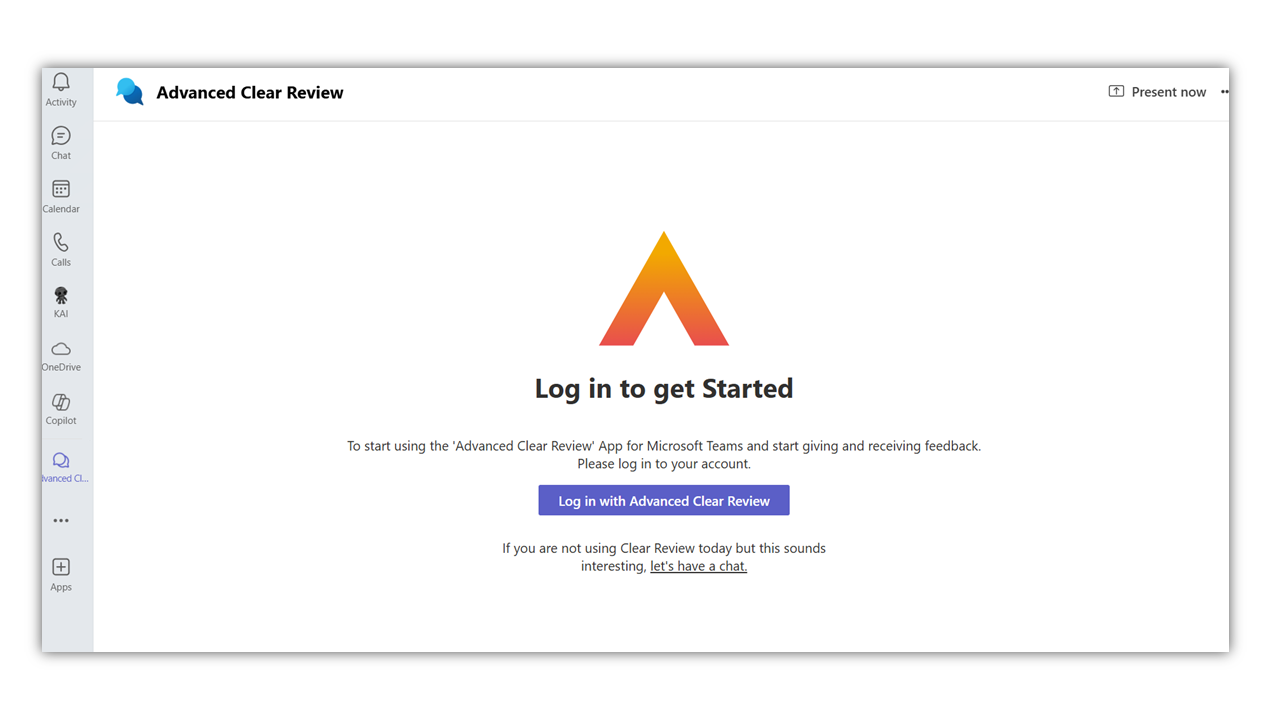
To use the features available within the app you will need to login to Performance & Talent via the teams app.
- Select Log in with Advanced Clear Review
- A pop-up window will appear whereby you need to now enter your login credentials.
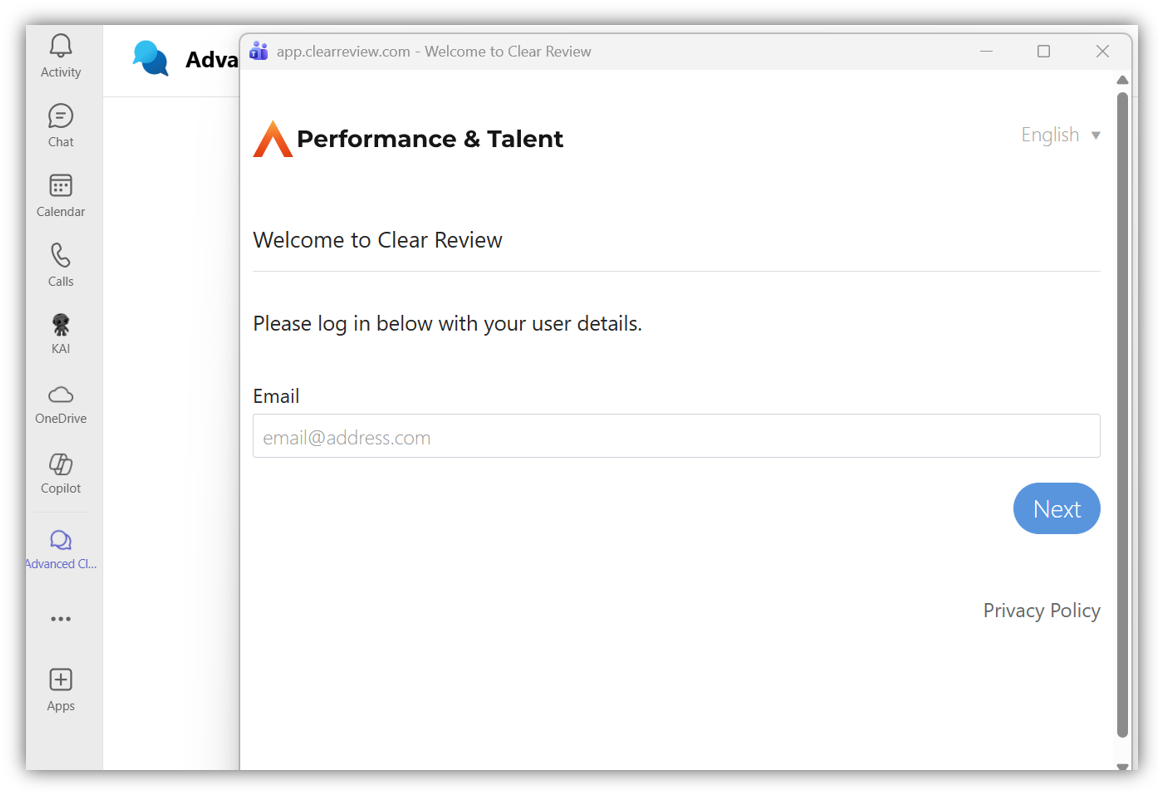
- If you are an SSO user i.e., you normally login to Performance & Talent via your identity provider (Azure, Okta, OneLogin), select Login with SSO and enter your email address and click Login (You may be directed to your identity provider to login)
If you do not use SSO, enter your email address and password for Performance & Talent and select Login - Once you have logged in, in the same pop-up window you will now be presented with an authorisation screen. Click Authorise to allow the MS teams app to access to your user information in Performance & Talent.
Note: Your Performance & Talent data is not being shared or stored in Microsoft.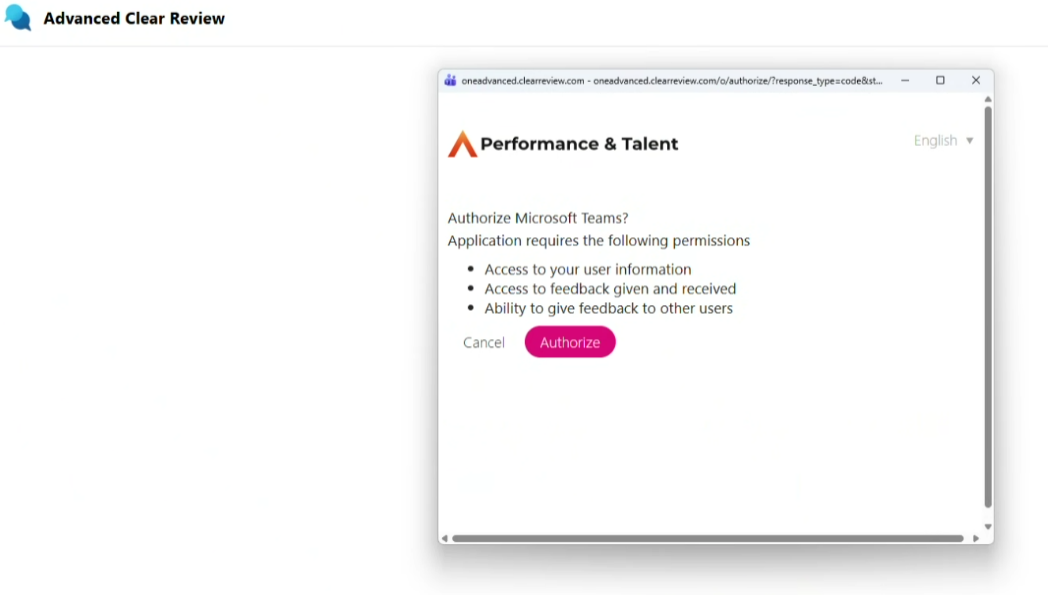
- On clicking Authorise you will now be logged into the app.
Give Feedback in the teams app
- The Clear Review MS Teams app provides the ability to give Performance & Talent Feedback from Microsoft Teams. The app has all the same fields for giving feedback as you see in Performance & Talent now but clarity is provided below on what each of these fields provide allow you to do.
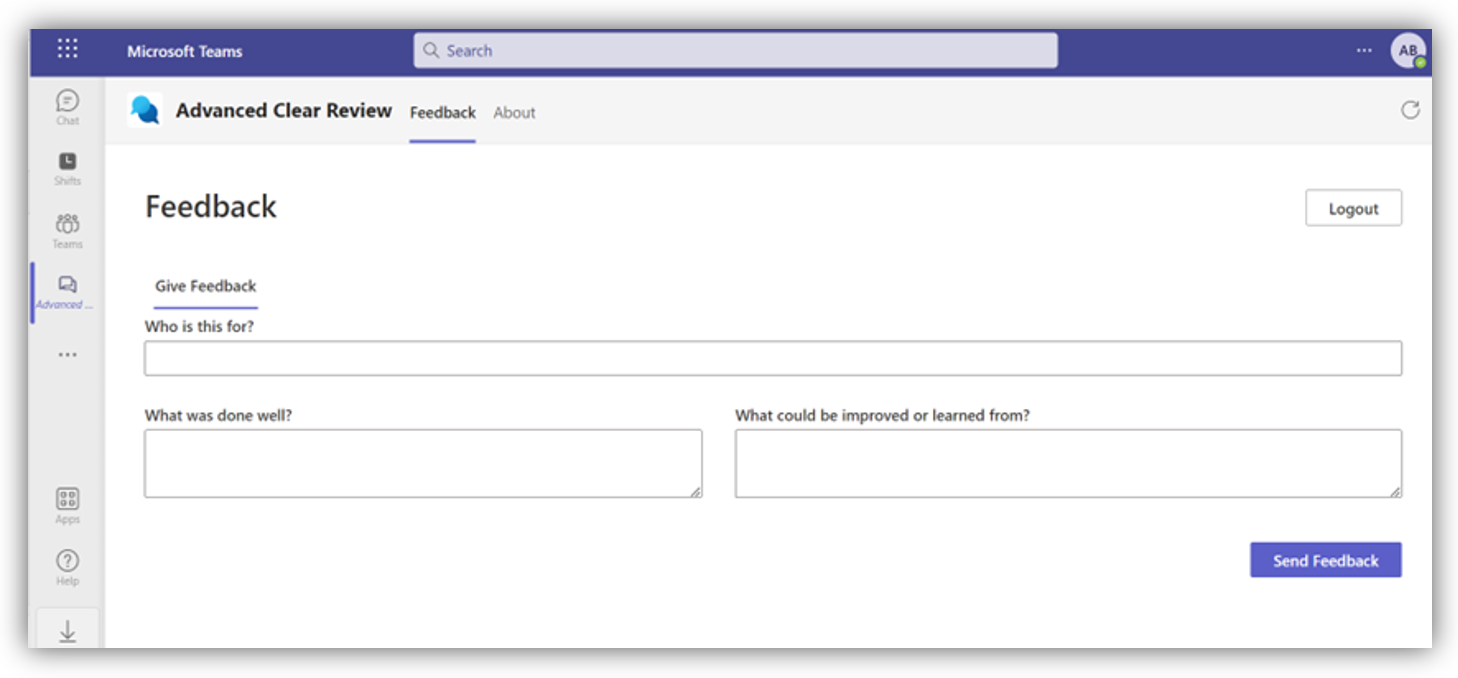
- In the Who this is for field, select the user you wish to give feedback to. Note: this is a list of your colleagues in Clear Review.
- In the What was done well and What could be improved or learned from field, enter your positive and constructive feedback
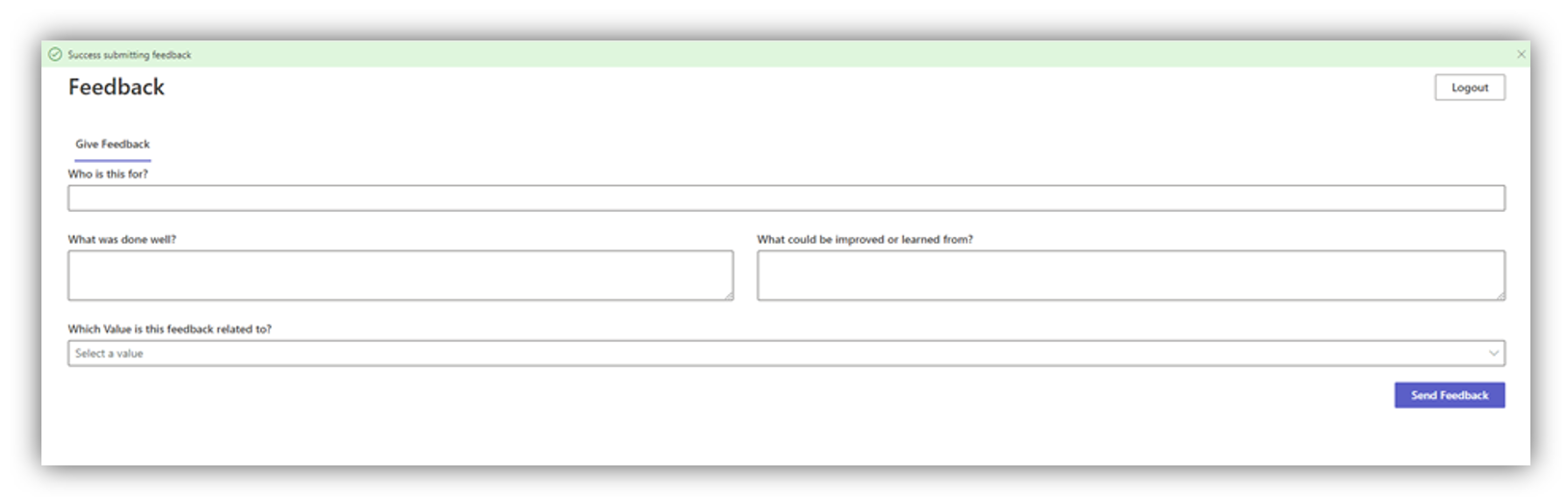
- If your organisation uses the values to link your feedback to, select a value in the Which value is this feedback related to
- Click Send Feedback
- A green banner will appear at the top of the page to confirm that the feedback has been submitted successfully.
FAQ'S
# | Question | Response |
1 | I use SSO to access Performance & Talent, will this work when accessing Performance & Talent in the MS Teams application? | Yes, on clicking Login in the MS teams app, you will be presented with the login screen where you can choose to Login with SSO. Users should enter their email and click Login. If the user is not already logged into their identity provider they will be navigated to their identity provider login page. |
2 | If I access Performance & Talent via my email and password, should I use the same email and password to access Performance & Talent in the MS Teams application? | Yes, the user should login using the same email and password that is used to login to Performance & Talent currently. |
3 | How often will I need to log-in to Performance & Talent in the MS Teams application? | The user will be required to login again after every 30 days |
4 | Can I request feedback in the MS Teams application? | Not at this current time |
5 | What permissions are required by my organisation to allow the Clear Review app to be installed in MS Teams. | On installing the Clear Review MS teams app for, the MS Teams global admin will need to approve the following permission: Sign in and read user profile As per the Microsoft Graph documentation this is the user.read permission which provides the following access:
It also allows the app to read basic company information of signed-in users. |
6 | What permission are required to be approved to access Clear Review in the MS Teams application? | When logging into to Clear Review via our MS Teams app, each user will be required to authorise the following permissions: · Access to your user information (This is your user information in Clear Review, i.e., name, email)) · Access to Feedback Given and Received · Ability to give feedback to other users. Please note: No data is stored or shared with Microsoft. Our Clear Review MS Teams app requires access to a users profile in Clear review so that users can use the functionality of the app. |
7 | How quickly will feedback given/received in MS Teams be visible in Performance & Talent? | The feedback given from MS Teams will immediately be visible in Performance & Talent |
8 | Can I see feedback requests that I received from colleagues in the MS Teams application? | Not at this current time |
9 | Will the feedback reports determine whether feedback was given via MS Teams? | Not at this current time |
10 | Can I continue to align feedback to values and/or behaviours via MS Teams? | Yes, the organisations values dropdown will be visible from our MS teams app when giving feedback (if the organisation uses organisation values). |
11 | Can I give anonymous feedback via MS Teams? | Not at this current time |
13 | Will our feedback settings transfer to the MS Teams FB app? | Not at this current time |
14 | Will the app pick up the naming convention of our tenant of the Performance & Talent? | Not at this current time |