Why Performance Management
Why Request Feedback?
Why Continuous Performance Management?
Why have Frequent Conversations?
Why use Feedback Circles for 360 Feedback?
Why in the moment Feedback?
Why have Different Types of Conversations?
Why create Agile Performance Goals?
Employees
How-to Videos
Objectives
What are Objectives
Setting Personal Development Objectives
What are Personal Development Objectives
Setting Performance Objectives
Adding Collaborators to Objectives (Optional Feature)
Managing Your Objectives
Actions
Conversations
Microsoft Outlook Integration - Employee Configuration
Preparing for a Check-in
Making the most of Check Ins
Feedback
Giving Effective Feedback
How to Give and Receive Feedback
Feedback Circles (Optional Feature)
Feedback - Draft with AI FAQ's
Give Feedback from Microsoft Teams
Feedback - Giving Feedback using Voice Messaging
Frequently Asked Questions (FAQs)
How to answer your Talent Snapshot
Feedback - Draft your Feedback with AI
Managers
Your Team
Workflows for Multiple Managers
My Team - Private Notes
My Team - Performance Summary
My Team - Key features and functions
Manager: How to answer a Talent Snapshot for your Team
System Administrators
System Administrators
Admin How-to Videos
DEPRECATED Training and Communication Materials
DEPRECATED Admin System Configuration Options
DEPRECATED Integration Settings
OneAdvanced Identity
Understanding OneAdvanced Identity
Configuring authentication with a federated Identity Provider (SSO)
Federated Identity Provider (SSO) - Migration plan
Federating OneAdvanced Identity to Azure Active Directory
Frequently Asked Questions (for Federated customers)
Configuring authentication without a federated Identity Provider
Templated Colleague Communications: Moving to OneAdvanced Identity
Non-federated Identity Provider - Migration plan
Frequently Asked Questions (for non-Federated customers)
Logging-in with Multi-Factor Authentication (for non-SSO users)
Performance & Talent App Initiated Login - SSO
DEPRECATED Analytics (Additional Module)
Migration from Analytics API to Performance and Talent Reporting API
Analytics API End of Life Notification
DEPRECATED Engagement (Additional Module)
Performance & Talent Implementation
System Notifications- Admin System Configuration Options
Talent Snapshots
How to add new round in Talent snapshot
How to add or remove participant in Talent snapshots
How to add new round in Talent snapshot
Define what talent means in your organisation
Creating Effective Talent Snapshot Questions
How to create and edit a new Template for Talent snapshots
Languages and System Terminology Settings
Conversation Settings
Conversations - Reminders and Discussion Prompts
Supplemental Discussion Prompts
Enabling Multiple Conversation Types
Default Conversation Prompts
Organisational Goals
Navigation Options
Admin Reporting Overview
Objective Settings
Configuring the Objectives Library
Performance Objective Options
Personal Development Objective Options
Feedback Settings
Feedback Circles Round Templates
Draft with AI for Admins
Feedback Circles for Admins (Additional Module)
Feedback Settings
Building a Feedback Culture
Support is Evolving
People Management
Multiple Managers Configuration
How to Set Up Delegate Access
People Management
Creating Admin Roles / Assigning Access
Report Visibility Options
Integration Settings
User Experience / User Interface Release
- All categories
- System Administrators
- Talent Snapshots
- How to add new round in Talent snapshot
How to add new round in Talent snapshot

You can now add new round in Talent snapshot for your users.
To do this:
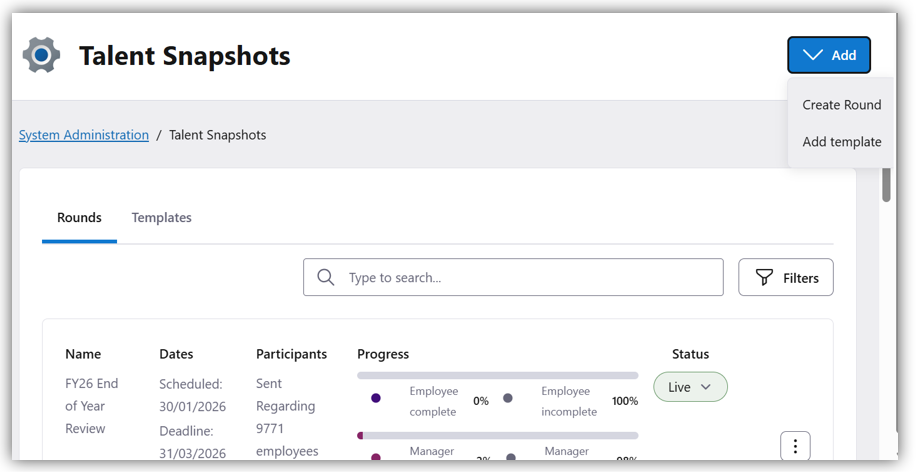
1. Select Admin Settings > Talent Snapshots: Configure, create, and send out Talent Snapshots and templates to help review employee performance and talent.
2. Select "Create Round" from the Add drop down
3. Fill up all the details in the "Round Details."
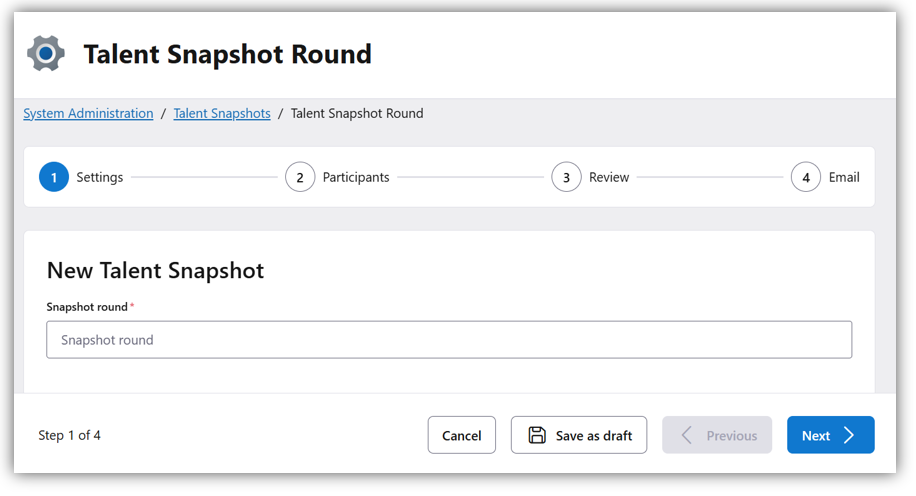
Snapshot round: Write the name of the round which you want to it to be displayed.
Snapshot Template and Description*: You will get the predesigned template to select the Template.
Snapshot Description*: Write the description according to your requirement
Deadline Date: Select a deadline by when you want your team to submit the round.
Schedule Round For Later: You can enable the schedule button to schedule the round.
Employee Sharing Options: Answers sharing options can be selected as you want.
4. Select "Next" to follow the next steps
5. Enter the Participants details, you can select a specific org unit, match or un-match a specific org unit as per your choice.
Furthermore, Select and unselect user to whom you want to share the round and click on "Next."
6. In the Third step: "Review" you will find the preview of the all the question which will be included in the round.
7. Select "Next."
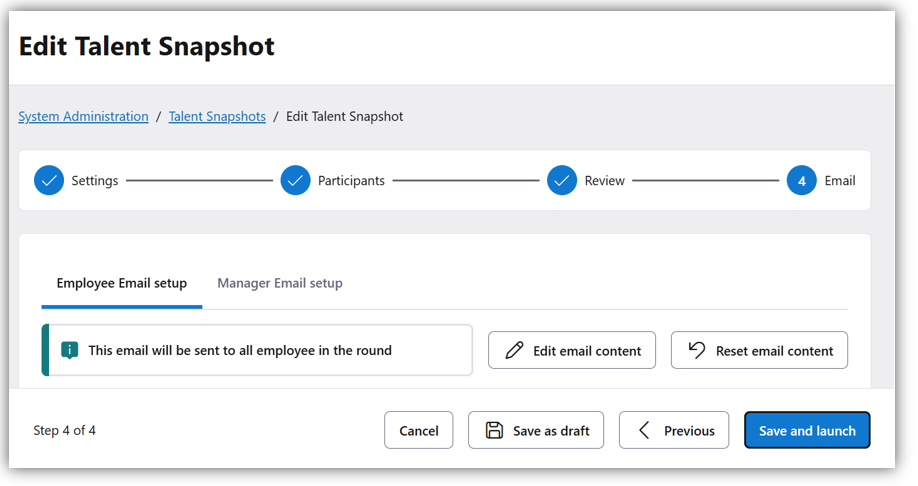
8. In email notification, you can see the email invitation preview which will be visible to customers. Select on "Save and launch" to send the talent snapshot to your users.