Employees
How-to Videos
Objectives
What are Objectives
Setting Performance Objectives
What are Personal Development Objectives
Setting Personal Development Objectives
Managing Your Objectives
Adding Collaborators to Objectives (Optional Feature)
Feedback
Feedback Overview
Giving Effective Feedback
Feedback Circles (Optional Feature)
Feedback - Draft with AI FAQ's
Feedback - Draft your Feedback with AI
Give Feedback from Microsoft Teams
Conversations
Making the most of Check Ins
Preparing for a Check-in
Microsoft Outlook Integration - Employee Configuration
Actions
Talent Snapshots
Frequently Asked Questions (FAQs)
Managers
Your Team - Key features and functions
Your Team - Performance Summary
Your Team - Private Notes
Your Team - Talent Snapshots
Your Team - Wider Team (for Senior Managers)
Workflows for Multiple Managers
System Administrators
Admin How-to Videos
Training and Communication Materials
Importance of Communications Plan and Knowing your Audience
Performance & Talent Training Materials
Clear Review Sample Launch Email Template
Tips for Building Engagement
Using Clear Review on a Mobile Device
Communicating the Benefits of Continuous Performance Management
Performance Focus and Success Measures
Admin guidance for using My Feedback Link
Clear Review Using 'Draft with AI' Email Template
Admin System Configuration Options
People Management
People Management
Creating Admin Roles / Assigning Access
Importing Employee Data
Multiple Managers Configuration
How to Set Up Delegate Access
Organisational Goals
Objective Settings
Performance Objective Options
Personal Development Objective Options
Collaborative Objectives
Configuring the Objectives Library
Feedback Settings
Building a Feedback Culture
Feedback Settings
Feedback Circles for Admins (Additional Module)
Draft with AI for Admins
Giving Feedback using Voice Notes
Conversation Settings
Enabling Multiple Conversation Types
Conversations - Reminders and Discussion Prompts
Default Conversation Prompts
Supplemental Discussion Prompts
Talent Snapshots
Talent Snapshots Guide and Sample Qs
Creating Effective Talent Snapshot Questions
Define what talent means in your organisation
How to add or remove participant in Talent snapshots
How to add new round in Talent snapshot
How to create and edit a new Template for Talent snapshots
Navigation Options
Report Visibility Options
Languages and System Terminology Settings
System Notifications
Integration Settings
OneAdvanced Identity
Understanding OneAdvanced Identity
Configuring authentication with a federated Identity Provider (SSO)
Federated Identity Provider (SSO) - Migration plan
Federating OneAdvanced Identity to Azure Active Directory
Frequently Asked Questions (for Federated customers)
Configuring authentication without a federated Identity Provider
Integrations (HRIS Data Feed / Single Sign on)
Microsoft One Drive Integration - Admin Configuration
Microsoft Teams Integration - Admin Configuration
Microsoft Outlook Integration - Admin Configuration
Analytics (Additional Module)
Analytics Overview (Additional Module)
Data Analytics API - How to Generate my API Key
Migration from Analytics API to Performance and Talent Reporting API
Analytics API End of Life Notification
Engagement (Additional Module)
Admin Reporting Overview
Raising a Support Ticket
Performance & Talent Implementation
Events and FAQ's
Why Performance Management
Why Continuous Performance Management?
Why in the moment Feedback?
Why Request Feedback?
Why create Agile Performance Goals?
Why create Agile Personal Development Goals?
Why have Different Types of Conversations?
Why have Frequent Conversations?
Why use Feedback Circles for 360 Feedback?
New User Interface Guides
User Experience / User Interface Release
Setting up logos in the new interface
UXUI Frequently asked Questions
Branding and URL changes
Comms for your employees
An update on our User Experience & User Interface upgrade - 2026
Automatic migration to OneAdvanced Identity
UX UI System Administrators
UX UI Managers
UI UX Why Performance Management
Why Request Feedback?
Why Continuous Performance Management?
Why have Frequent Conversations?
Why use Feedback Circles for 360 Feedback?
Why in the moment Feedback?
Why have Different Types of Conversations?
Why create Agile Performance Goals?
UX UI Employees
UX UI Objectives
What are Objectives
Setting Personal Development Objectives
What are Personal Development Objectives
Setting Performance Objectives
Adding Collaborators to Objectives (Optional Feature)
Managing Your Objectives
UX UI Actions
UX UI Conversations
UI UX Microsoft Outlook Integration - Employee Configuration
Preparing for a Check-in
Making the most of Check Ins
UX UI Feedback
Giving Effective Feedback
How to Give and Receive Feedback
Feedback Circles (Optional Feature)
Feedback - Draft with AI FAQ's
Give Feedback from Microsoft Teams
Feedback - Giving Feedback using Voice Messaging
UX UI Frequently Asked Questions (FAQs)
Feedback - Draft your Feedback with AI
Table of contents
- All categories
- New User Interface Guides
- User Experience / User Interface Release
- Setting up logos in the new interface
Setting up logos in the new interface

Due to changes in colour schemes, screen positioning, and the introduction of light and dark modes, your existing logos from the old interface will not be appear correctly in the new user experience. As such your existing logos will not be automatically transferred to the new experience.
Prepare for the new logo
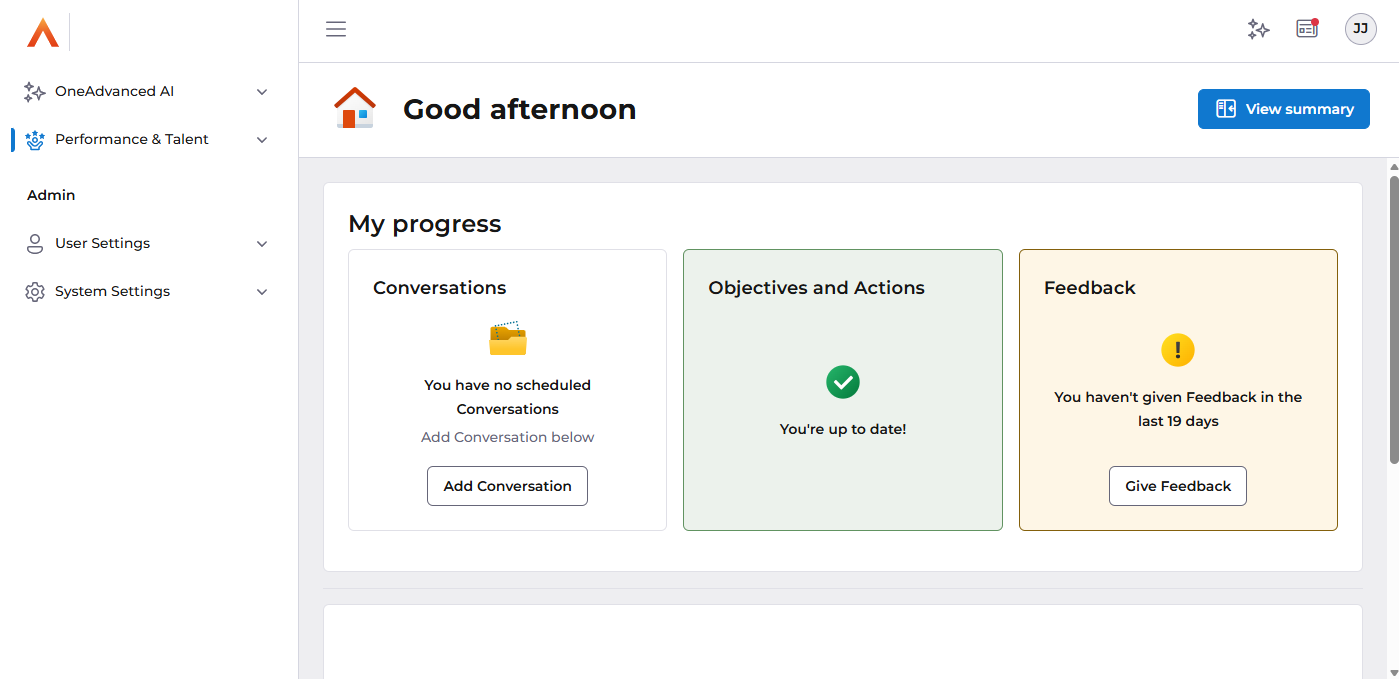
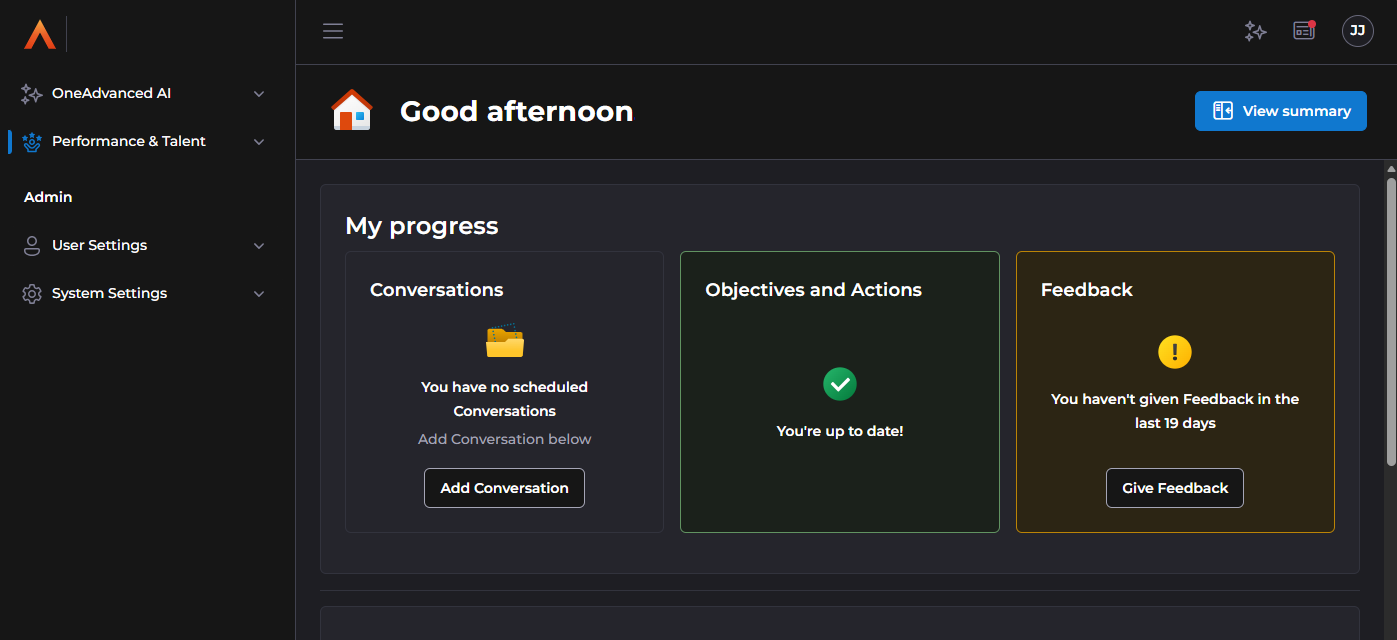
As you prepare for the February release, we recommend creating two new logos to work with light and dark modes, to ensure they remains visible and effective. We've provided a gallery below to assist in testing your logo on both light mode and dark mode backgrounds to ensure the correct logo choice.
New logo requirements:
Logo test gallery
Example logo placement:
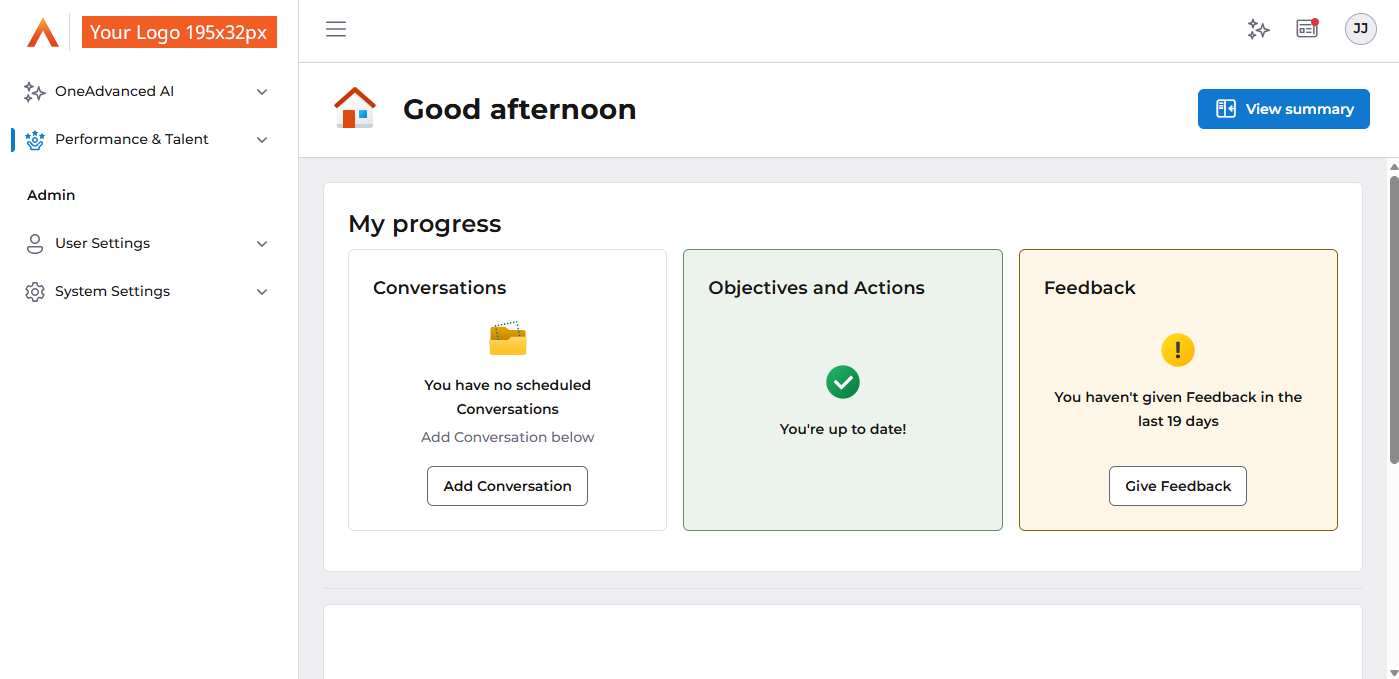
Light mode logo test:
Dark mode logo test:
Upload your new logos - Available March 15th 2026
- Sign into apps.oneadvanced.com using your Organisational admin credentials.
- Click on the Organisations tab on the navigation bar.
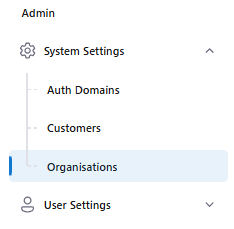
- Click on the Edit button with the Pencil icon for the organisation you wish to upload logos for
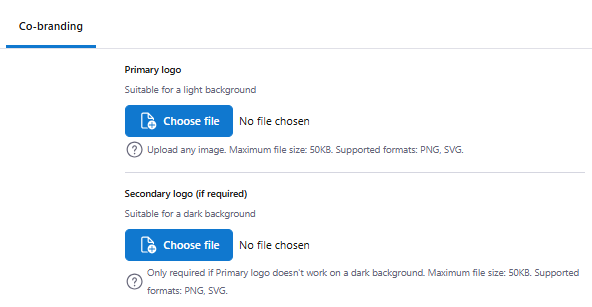
- Click on the Co-Branding tab and choose your Primary logo file for light mode and Secondary logo file for dark mode
- Click Update Organisation to upload your new logos
FAQ
How many logos are needed?
If your logo works well on both light and dark modes, then you only need to upload the Primary logo. A Secondary logo option is available if you'd like specific logos for both light and dark modes.
What formats do we accept?
All logos supplied should have transparent backgrounds. Our preferred formats are PNG or SVG.
What size should logos be?
The maximum file size is 50KB. Logos can be uploaded in any dimension and will be automatically scaled to fit the co-branding area while maintaining their aspect ratio. For best results, logos should be supplied without padding.
Glossary
SVG (Scalable Vector Graphics):
Explanation: SVG is a file format used for vector graphics. It's a scalable format that can be resized without losing quality, making it suitable for logos and other graphics.
PNG (Portable Network Graphics):
Explanation: PNG is a file format used for raster graphics. It's a widely supported format that can be used for logos and other images, but can introduce visual artifacts when scaled.